
Search page layout
The following image shows the Search page when you first load it:
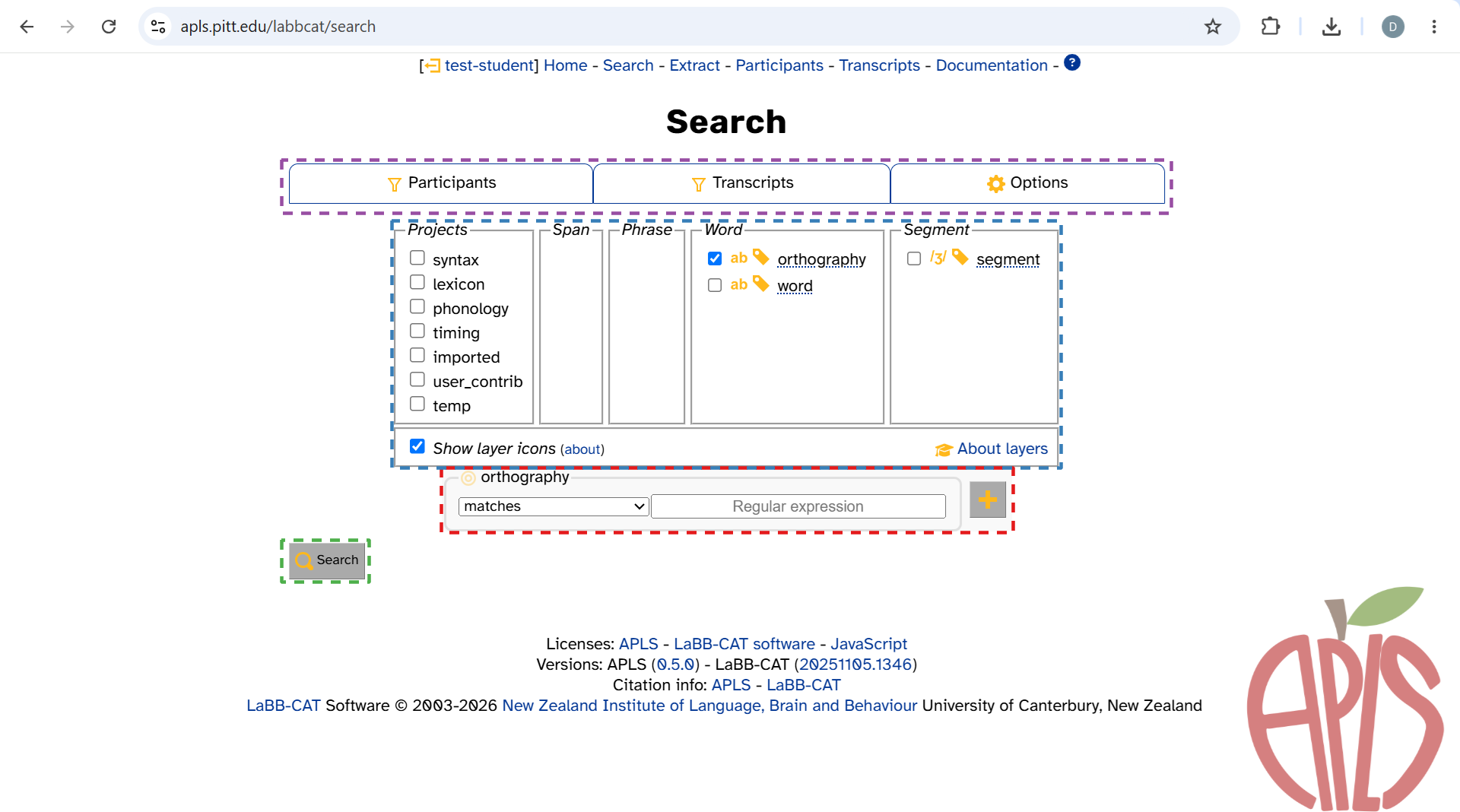
- The search matrix (highlighted in red above).
- This is where you specify patterns to search.
- Made up of one or more pattern inputs.
- The layer picker (highlighted in blue above).
- This is where you can add and subtract pattern inputs from the search matrix.
- The search button (highlighted in green above).
- Click this to begin your search (or press
Enter/Returnwhile in a text box).
- Click this to begin your search (or press
- The tabs (highlighted in purple above). This is where you can…
- Filter searches by specific participants and transcripts.
- Configure your search with different search options.
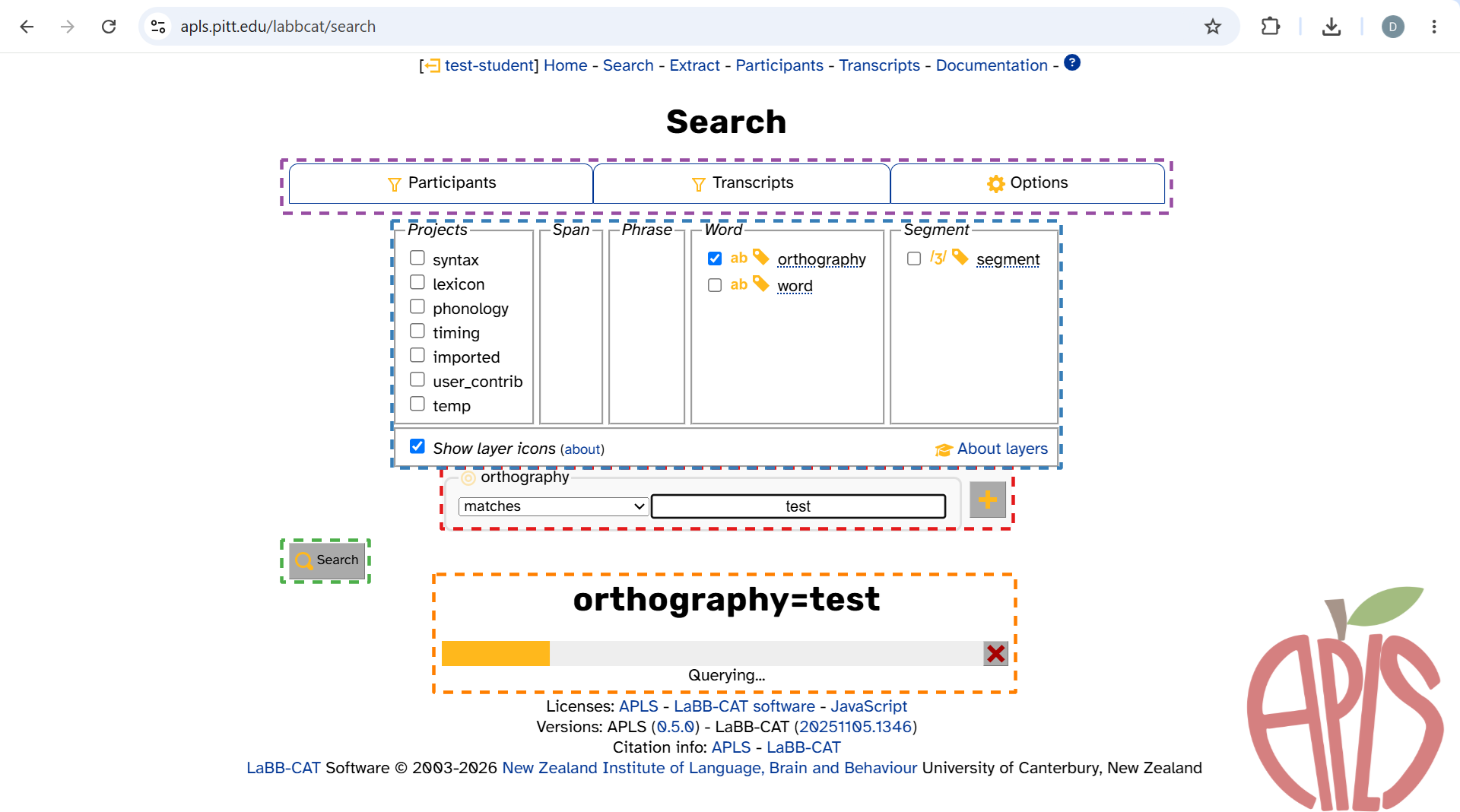
Once you enter a pattern into the search matrix and click Search, a progress bar pops up (highlighted in orange below):
Pattern input features
The search matrix is made up of one or more pattern inputs. When you first load the search page, you’ll only see a pattern input for the orthography layer (highlighted in red below).
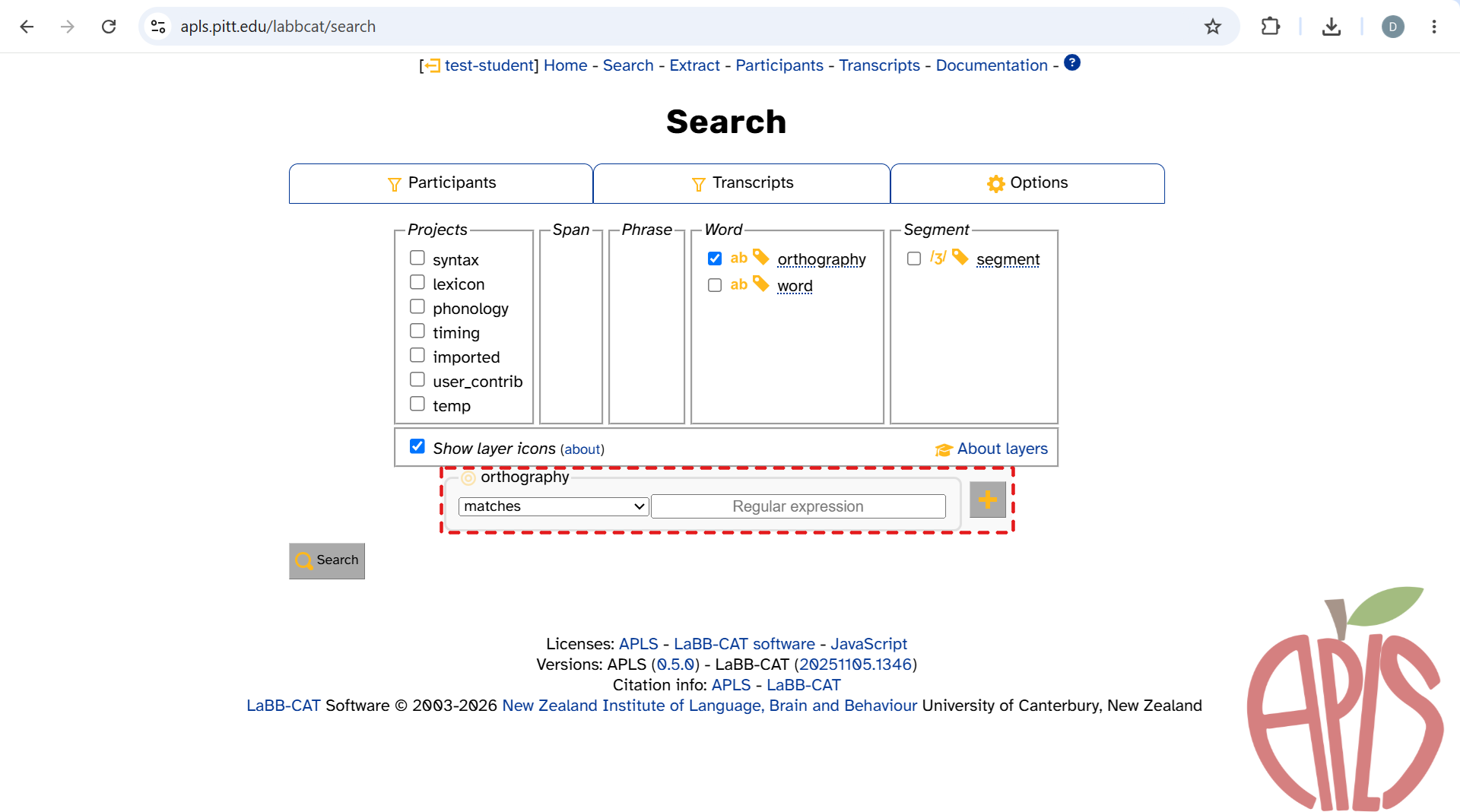
You can make more pattern inputs appear by selecting layers in the layer picker and/or widening the search matrix to multiple words.
Not all layers’ pattern inputs look alike. To demonstrate all the possible features, here’s what the search matrix looks like when you select overlap, turn, syllables, foll_pause, orthography, and segment in the layer picker:
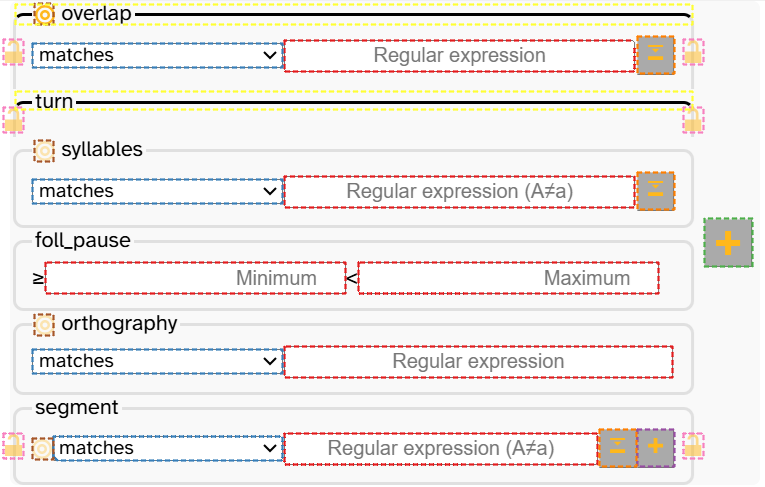
This search matrix has 6 different pattern inputs, one for each selected layer. Let’s break down what we’re seeing:
- Most important of all, input boxes (highlighted in red above) let you specify a pattern for that layer.
- Appearance depends on the layer’s data type:
- Text layers (like overlap) and phonological layers (like syllables) have one input box marked
Regular expressionorRegular expression (A≠a).(A≠a)means that the pattern is case-sensitive (as in, the characterAis not treated the same as the charactera). Otherwise, the pattern is case-insensitive.
- Numeric layers (like foll_pause) have two:
MinimumandMaximum. - Timing-only layers (like turn) have none.
- Text layers (like overlap) and phonological layers (like syllables) have one input box marked
- Appearance depends on the layer’s data type:
- The matches dropdowns (highlighted in blue above) let you search for the opposite of a pattern or missing annotations.
- The
 buttons let you change the width of the search matrix.
 - The large button to the right of the pattern inputs (highlighted in green above) widens the search matrix by another word.
- For layers with segment scope (like segment), there’s also a small button (highlighted in purple above) that lets you search for multiple segments within a word.
- The large
- The
 buttons (highlighted in orange above) open a symbol picker, which helps with inputting patterns for layers that have specific notation systems (like overlap, syllables, and segment).
 - The
 icons (highlighted in brown above) let you define the “token of interest” when searching across words, within words, or across layers, given that annotations differ by both scope and alignment.
 - The
 icons (highlighted in pink above) let you anchor a pattern to the beginning or end another layer’s scope.
 - Black lines at the top of a pattern input (highlighted in yellow above) indicate that the layer has either span or phrase scope (like overlap and turn).